For Windows 10 & 11
Convert and edit files from one corner.
Drag a file. Tap Shift to convert or Alt to edit. Your files stay on your PC.
Launch price$8.99one-time · purchases open at launch
Shift ConvertAlt Edit
Try a file
Drag, then tap Shift ↗Tap a sample file ↓
weekend_converted.pdfSample result · no real files changed
01Drag a sample and tap Shift once. Or tap a file, then a format.
PLAYGROUND · SAMPLE FILES ONLY
See Ottobeam in action.
Editing tools
File uploads
HOW IT WORKS
Drag. Tap. Drop.
Drag a file.
Start in File Explorer. Select several files for a batch.
Tap once.
Shift opens conversions. Alt opens editing tools.
Drop and save.
Choose a tool on the bean. Your result saves to your chosen folder.
Press Esc to cancel. Open the tray icon for settings and the Quick tour.
FEATURES
Everything in reach.
Convert
Images, documents, PDFs, audio, video and archives.
See all formatsEdit
Preview changes, then save a new copy.
Explore editingWork locally
OCR and file processing run on your PC.
Privacy detailsSUPPORTED FILES
What can you work with?
From a quick format swap to the final edit. Your everyday file tools, together at last.
01 / PICTURE PERFECT, LESS EFFORTA new format.
A new format.
A fresh perspective.
Make that photo fit wherever it’s going. Convert, crop, resize, annotate, or give it a little polish.
- JPG, PNG, WebP, HEIC, TIFF, AVIF & BMP
- Crop, resize, adjust, and round corners
- Remove backgrounds or hide private details
- Turn one image — or a whole batch — into a PDF
A few more tricks up its sleeve.SpreadsheetsSubtitlesZIP, TAR & GZIP
EDITING STUDIOS
See your edits before you save.
Start dragging a file, then tap Alt once anywhere. Release Alt and drop on an editing tool. A focused studio opens with the controls and preview you need.
IMAGE STUDIO01 / 04

A fresh crop. A softer edge.
Crop, resize, adjust, annotate and round corners. A few thoughtful controls make the finishing touches feel easy.
TRY THE CONTROLS · ILLUSTRATIVE PREVIEW DOCUMENT STUDIO02 / 04
Make paperwork feel lighter.
Merge, reorder, split, sign and extract. Turn scanned pages into searchable PDFs with local OCR.
♫ AUDIO + VIDEO STUDIOS03 + 04
Keep the good part.
Trim the silence, join the clips, clean up the sound. Save a version that gets straight to it.
PRIVACY
Your files stay on your PC.
Photos, recordings, private paperwork. They belong with you. Conversion, editing and OCR all happen locally on your Windows PC.
Read the privacy policy No file uploads No account needed Originals stay untouched
CONVERT AND EDIT
Explore the toolkit.
Drag and tap Shift once to convert. Tap Alt once to edit. Find exactly what your files can do.
250 input-to-output conversion paths, organized by destination below. Start dragging your selection, then tap Shift once anywhere on screen. Release Shift and drop onto a destination. Only compatible formats appear; mixed batches show common destinations.
IMGImages8 tools
JPG, JPEG, PNG, WebP, HEIC / HEIF, TIFF, AVIF, BMP and SVG. SVG is input only.
Convert to JPG
Make a widely compatible photo. Transparent areas are placed on white.
Convert to PNG
Save a lossless image with transparency when the source contains it.
Convert to WebP
Create a compact image for the web, with transparency support.
Convert to HEIC
Encode a high-efficiency image from a supported photo format.
Convert to TIFF
Save an image in a format commonly used for print and image workflows.
Convert to AVIF
Encode an efficient modern image with the bundled image engine.
Convert to BMP
Create a Windows bitmap image.
Images to PDF
Make one PDF page per image. A selection becomes one multi-page PDF in selection order.
PDFPDFs9 tools
PDF files, including scanned pages for local OCR text exports.
PDF to Word · DOCX
Create editable Word content. Installed Word is tried for layout; the text/OCR fallback may simplify the layout.
Make a searchable PDF
Keep page images and add an invisible, selectable local OCR text layer where text is missing.
PDF to PowerPoint · PPTX
Put each PDF page on a slide as a fitted image. Individual slide objects are not reconstructed.
PDF to Excel · XLSX
Export detected tables to cells, or extract native/OCR text lines into worksheets.
PDF to JPG
Export every page as a 300 DPI JPG into a new folder at your output location.
PDF to PNG
Export every page as a 300 DPI PNG into a new folder at your output location.
PDF to EPUB
Create a reflowable ebook from the document’s extracted text.
PDF to TXT
Extract readable text, using local OCR for scanned content when needed.
PDF to Markdown
Export extracted text as Markdown with inferred headings and lists.
DOCDocuments7 tools
DOC, DOCX, ODT, RTF, TXT, Markdown and EPUB. Fixed-layout document rendering uses local Word, compatible WPS Office, or LibreOffice.
Convert to DOCX
Create editable Word paragraphs. Complex formatting may change when converted through PDF.
Convert to Markdown
Export document text in a lightweight Markdown file.
Convert to TXT
Keep the readable text in a plain-text file.
Convert to EPUB
Create a reflowable ebook from the document’s text.
Convert to PDF
Render a document into fixed pages. Plain text needs no installed Office app.
Convert to HTML
Export readable text as simple HTML paragraphs and page sections.
Convert to RTF
Export extracted text as a Rich Text Format document.
PPTPresentations3 tools
Alt editing is not available for this file type.
PPT and PPTX. Rendering needs installed PowerPoint, compatible WPS Presentation, or LibreOffice.
Slides to PDF
Render the presentation as a PDF, one slide per page.
Slides to JPG
Render slides and save each one as a JPG in a new folder.
Slides to PNG
Render slides and save each one as a PNG in a new folder.
XLSSpreadsheets4 tools
Alt editing is not available for this file type.
XLSX, ODS, CSV and TSV. Data conversion preserves common cell types and supported formulas; workbook styles and charts are not reconstructed.
Convert to XLSX
Create an Excel workbook from the source sheets or text rows.
Convert to ODS
Create an OpenDocument spreadsheet. Supported common formulas, booleans and internal blank rows are retained.
Convert to CSV
Export comma-separated rows. A multi-sheet workbook creates one CSV per sheet in a folder.
Convert to TSV
Export tab-separated rows. A multi-sheet workbook creates one TSV per sheet in a folder.
SRTSubtitles3 tools
Alt editing is not available for this file type.
SRT and WebVTT subtitle files.
Convert to SRT
Keep subtitle text and timing in SubRip format.
Convert to VTT
Keep subtitle cues and timing in WebVTT format.
Subtitles to TXT
Extract the subtitle dialogue as plain text without timing information.
ZIPArchives4 tools
Alt editing is not available for this file type.
Files and folders for packing; ZIP, TAR, GZIP, TGZ and RAR for extraction. RAR input uses Windows tar/libarchive.
Create ZIP
Bundle selected files and folders into one ZIP archive.
Create TAR
Combine selected files and folders into one TAR archive.
Create GZIP
Compress one file into .gz; selections and folders become .tar.gz.
Extract an archive
Unpack ZIP, TAR, GZIP, TGZ or RAR input. RAR creation is not offered.
WAVAudio8 tools
MP3, M4A, WAV, FLAC, OGG, Opus, AIFF / AIF and WMA. Conversion uses bundled FFmpeg.
Convert to MP3
Create a widely supported, compressed audio file.
Convert to M4A
Encode AAC audio in an M4A container.
Convert to WAV
Save uncompressed PCM audio. Converting a lossy source cannot recover missing detail.
Convert to FLAC
Save audio with lossless compression.
Convert to OGG
Encode Vorbis audio in an OGG container.
Convert to Opus
Encode efficient compressed audio using the Opus codec.
Convert to AIFF
Save PCM audio in an AIFF file, supported on Windows by the bundled engine.
Convert to WMA
Encode a Windows Media Audio file.
MP4Video9 tools
MP4, M4V, MOV, MKV, WebM, AVI, WMV and GIF. MP3 extraction requires an audio track.
Convert to MP4
Create an H.264 video with AAC audio when audio is present.
Convert to M4V
Create an MP4-family video using the bundled local engine.
Convert to MOV
Save a compatible video in a MOV container.
Convert to MKV
Create a Matroska video file.
Convert to WebM
Encode web-friendly VP9 video with Opus audio when available.
Convert to AVI
Save a video in an AVI container.
Convert to WMV
Create a Windows Media Video file.
Video to GIF
Create a palette-optimized animated GIF. GIF output has no audio.
Extract MP3 audio
Save a video’s soundtrack as an MP3 without its picture track.
Start dragging compatible files, then tap Alt once anywhere on screen. Release Alt and keep dragging to an editing tool. The matching studio opens with a preview and controls; choose Save when ready. Tap Shift during the same drag to return to conversions.
IMGImage editing13 tools
Tap Alt once while dragging one or more supported images. Drop on an edit section to open the image editor.
Compress images
Save a new JPEG or WebP with adjustable quality. The original stays unchanged.
Resize images
Enter exact dimensions and choose Fit, Fill or Stretch.
Remove background
Separate a subject from its background locally and save a transparent PNG. Clear, separated subjects work best.
Extract image text
Recognize text directly from an image using local OCR and save a TXT file.
Read QR codes
Drag an image, tap Alt once, release it and drop onto Read QR. Read one or several QR codes locally, copy their text or save a TXT file per readable image. Links never open automatically.
Edit image metadata
Set author, description, copyright and camera tags, remove GPS, or strip metadata.
Adjust photos
Change brightness, contrast, saturation and sharpness; rotate, mirror or make grayscale. Supported image tools also offer rounded transparent corners.
Annotate photos
Add pen strokes, text, arrows, rectangles, ellipses and numbered callouts. Drag marks to move them; Delete removes a selected mark and Undo restores edits.
Add a background
Place an image on a solid color, gradient or another picture, with adjustable padding.
Crop images
Choose an aspect preset, draw a selection, and move or resize it with the preview handles.
Redact photos
Mark regions and hide them with blur, pixelation or a solid color; adjust the intensity.
Create a PDF
Combine selected images into one PDF, with one image per page.
Make a collage
Combine at least two images in a grid; choose spacing, corners and background.
PDFDocument editing13 tools
Alt-drag PDF, DOC, DOCX, ODT, RTF or TXT. Non-PDF sources render to a temporary PDF first; some need a local Office engine. Open All tools in Document studio for the complete set.
Compress PDFs
Reduce PDF size with image quality and resolution settings. An already compact file may produce no smaller copy.
Merge PDFs
Combine at least two selected documents into one PDF. Drag list rows to choose their order.
Split pages
Save every page as its own PDF in a new folder at your output location.
Extract pages
Select pages from one PDF and save them as a new PDF. This action accepts one PDF at a time.
Organize pages
Drag to reorder pages, rotate by 90°, duplicate pages, or remove them before saving a new PDF.
Save pages as images
Export every page as PNG or JPG with a chosen resolution; the default is 300 DPI.
Extract text + Markdown
Save document text as TXT or Markdown, using local OCR for missing scanned text.
Export to Word
Create editable DOCX content. A text/OCR fallback is available when Word cannot reconstruct the PDF layout.
Make searchable PDF
Add missing, invisible OCR text while preserving the page pictures and existing text.
Export slides + spreadsheets
Choose PPTX for image-based page slides, or XLSX for detected tables and extracted text.
Create an EPUB
Create a reflowable ebook from extracted document text.
Edit PDF metadata
Set or remove properties such as title, author and creator.
Sign PDF
Draw a signature, type a name, or import an image, then place it on a chosen PDF page. This visible signature does not use a cryptographic certificate; select one PDF at a time.
WAVAudio editing8 tools
Tap Alt once while dragging one or more supported audio files. Use the waveform and playback controls to preview the first file; saved settings apply to the selection.
Compress audio
Choose MP3, M4A or Opus and a bitrate. A new result is kept only when it is smaller.
Normalize volume
Adjust loudness toward a chosen LUFS target for a more consistent listening level.
Clean up audio
Reduce steady hiss or hum with adjustable local spectral noise reduction.
Trim audio
Move waveform handles or enter start/end times. Auto trim can remove silence at the beginning and end.
Convert audio channels
Choose mono or stereo; mono conversion combines the available channels.
Visualize audio
Export a static teal waveform PNG with adjustable width.
Bleep audio
Drag audio, tap Alt once and drop onto Bleep. Adjust the first range with waveform handles or times, then choose Add range for more. Select a row to adjust it, or Remove range to delete it. Choose a pitch and Save to replace every marked range with a bleep; overlapping ranges join automatically. Playback previews the original audio.
Edit audio metadata
Set title, artist, album and comment tags, or remove metadata.
MP4Video editing11 tools
Tap Alt once while dragging supported video files. Preview the first clip with playback, a scrub timeline and frame stepping.
Compress videos
Choose a maximum width and quality preset. The app saves a result only when it is smaller.
Resize videos
Enter exact, even pixel dimensions and choose Fit, Fill or Stretch.
Join videos
Combine at least two clips. Drag their list rows to set playback order.
Trim videos
Set start and end times with the timeline handles or time controls.
Split videos
Mark points on the timeline and save each section as a separate MP4 in a folder.
Crop & rotate videos
Draw and resize a crop region, rotate by 90°, 180° or 270°, or apply both.
Change playback speed
Choose a speed from 0.5× to 2×; audio tempo is adjusted when audio is present.
Remove audio
Save a silent copy of a video that has an audio track.
Save video frames
Choose snapshot times and export full-resolution PNGs into a new folder.
Redact videos
Mark an area and time range, then cover it with a solid block or blur.
Edit video metadata
Set title, artist and comment tags, or remove embedded metadata where the container supports it.
No matching tools in this mode. Try another term or switch between Convert and Alt + drag.
One file, or a few.
In Windows Explorer, hold Ctrl and click individual files, or use Shift for a range. Drag the whole selection. Merge PDFs, join videos and make collages need at least two files.
Your originals stay put.
Results save to your chosen output folder (Desktop by default) with new names or folders. Change it in Control center → Save results. Studio previews show the first selected file; shared settings apply to the batch. Right-click the pill and choose files to browse instead, or use × to close the wheel. A plain click on the idle bean does nothing.
A few practical details.
Some Word and slide rendering needs Microsoft Office, compatible WPS Office or LibreOffice installed. Local OCR handles scanned text; recognition and complex layouts can vary. An already compact file may not compress further.
Alt editing is available for images, documents, audio and video in the Windows app. The playground above demonstrates sample conversions. Right-click the pill or use the system tray for Archive selection, hover sound settings and Quit.
Frequently asked questions.
Do my files leave my computer?+
No. Conversion, editing, and OCR run locally on your Windows PC. Your selected files are not uploaded to a server. The interactive preview on this page uses sample filenames only.
How do I get started?+
Download ottobeam-Setup-1.6.13.exe, open it, and follow Setup. Choose an install folder and any optional shortcuts, then launch ottobeam from the Start menu. New installations open a welcome tour with sample-file practice. Replay Quick tour from the tray or control center, where you can also choose your corner, color and tools. Start dragging, then tap Shift once to convert or Alt once to edit. Release the key and keep dragging to your chosen tool. Plain clicks on the idle bean do nothing.
Can I choose where results are saved?+
Yes. Open Control center → Save results → Choose folder. Conversions, image/PDF/audio/video edits and archive results use that location. Your choice is remembered on this PC. Use Desktop returns to the Windows default. A job already in progress keeps its original destination, and unavailable folders show an error instead of silently saving elsewhere. Your original files stay unchanged.
What does Setup install?+
The complete offline app, including conversion engines and local OCR. It installs for your Windows user without administrator access and uses around 510 MB of disk space. Start menu shortcuts are included; desktop and automatic-startup shortcuts are optional. Uninstall through Windows Settings; your converted files and saved preferences are retained.
This release is not code-signed yet. You can review the release details and SHA-256 checksum before installing.
Does ottobeam update itself?+
Yes, starting with version 1.0.3. The installed app checks for updates and downloads them quietly in the background. A verified update installs the next time you open ottobeam. You can also choose Restart to update when your editors and conversions are finished, or pause automatic updates in the control center. Version 1.0.2 and older need one manual upgrade to receive this feature.
How do you count 250 conversion paths?+
Each supported input-to-output format pair counts once: MP3 to WAV and WAV to MP3 are two paths. The 250 paths cover images, PDFs, documents, slides, spreadsheets, subtitles, audio and video. Alternate filename extensions and same-format copies are counted once or excluded. Searchable-PDF OCR and archive packing or extraction are additional workflows. The toolkit groups these paths into destination choices, so one destination can work with several input formats.
Does it need Microsoft Office?+
Only some document and slide conversions need an installed layout engine: Microsoft Office, compatible WPS Office, or LibreOffice. Image, audio, video, and local OCR tools come with their own engines. PDF-to-PowerPoint creates image-based slides; complex document layouts may change.
Can I work with more than one file?+
Yes. Select multiple files in Explorer with Ctrl or Shift, then drag the selection to ottobeam. You can batch-convert images, make a multi-page PDF, merge PDFs, join videos, or bundle files into an archive.
Get Ottobeam for Windows.
Download for WindowsHow to install
We’re an independent, bootstrapped tool. Our installer is currently unsigned, so Windows may show a SmartScreen warning.
Click More info Run anyway, then follow Setup.
This release was scanned with Microsoft Defender: no threats found. See screenshots ↗
A NOTE ABOUT WINDOWS SETUP
A familiar warning.
A little explanation.
ottobeam’s current installer is not code-signed, so Windows may show “Unknown publisher” and a SmartScreen warning. Windows checks both publisher identity and the reputation of each downloaded release.
Download ottobeam with confidence. This release was scanned with Microsoft Defender with no threats found, and we publish its SHA-256 checksum so you can verify the installer.
-
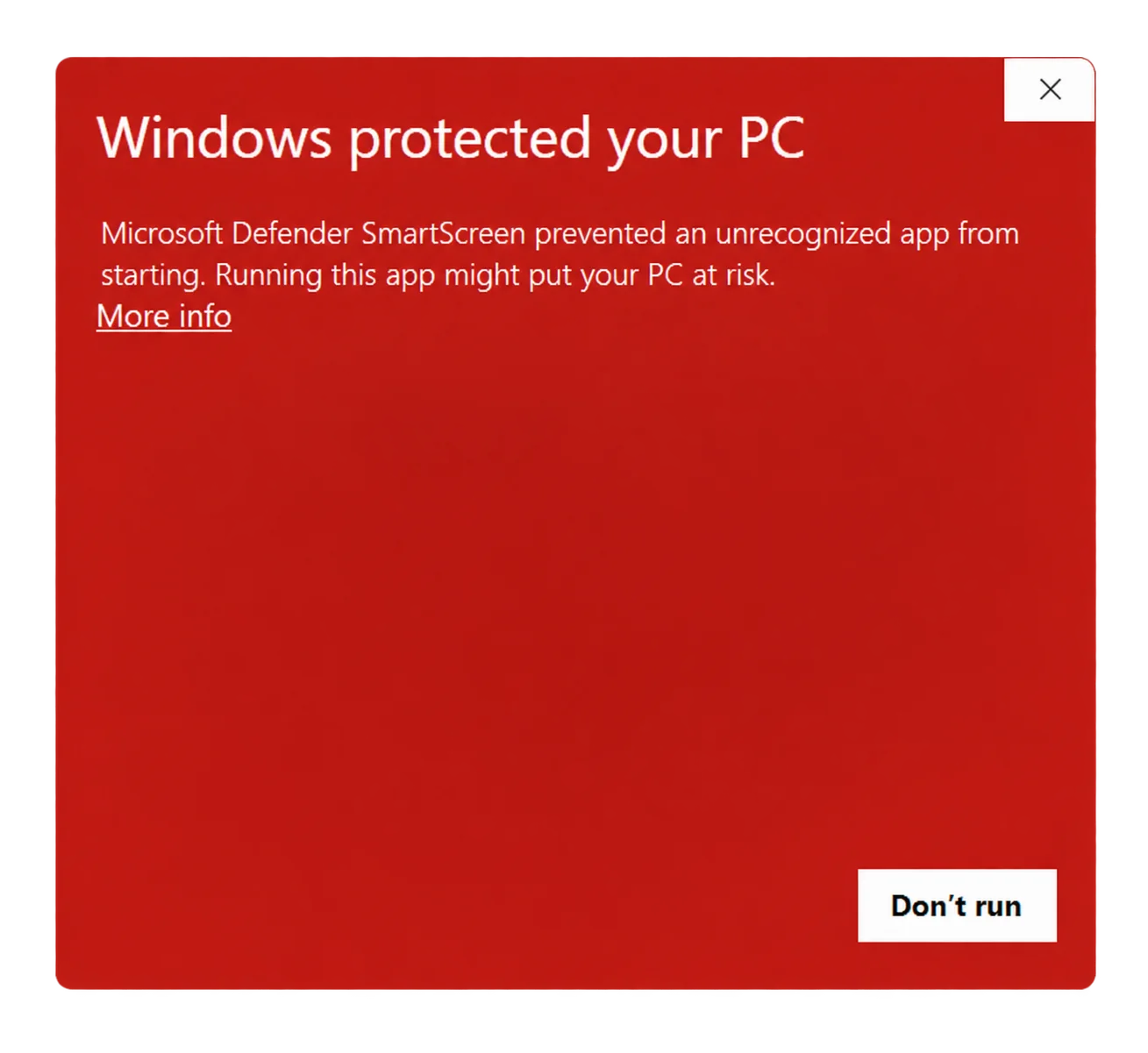
Select “More info”
If this warning appears when you open Setup, select the underlined “More info” link to view the app details.
-
Check the file, then choose
Confirm the app name matches your ottobeam installer. If you trust it and want to continue, select “Run anyway”, then follow Setup.
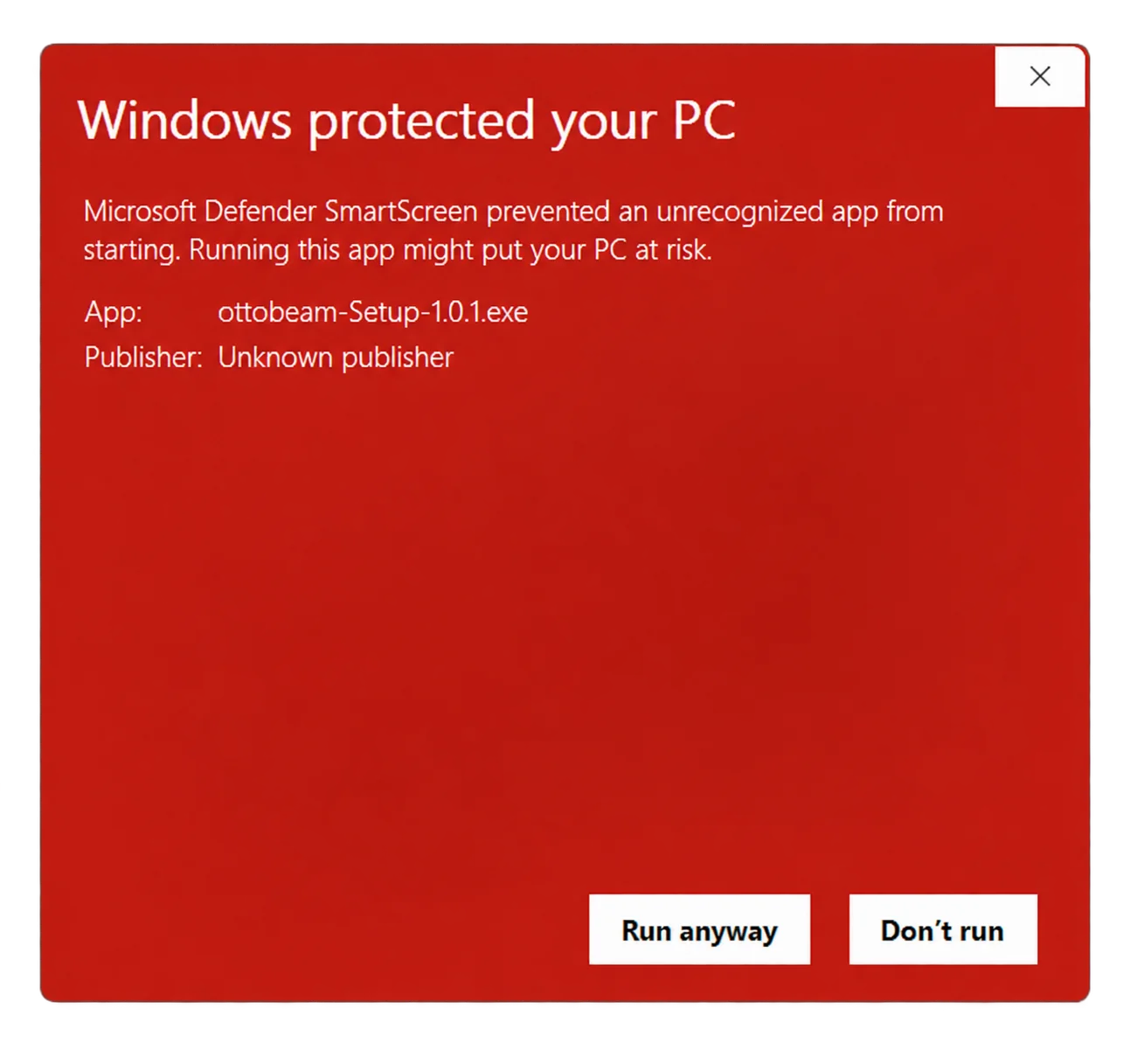
Check your download. Compare it with the published SHA-256 checksum in the release details. If “Run anyway” is unavailable, your PC’s security policy may block unsigned apps. Keep Windows protections enabled.